Meow! How Can We Help?
Customer
Account – 18 questions answered
When logged into your Meowtel account, go to My Cats. Here you can click on "Add more cats" on our website, or "Add a cat" in our mobile app, to ensure each cat is included, along with their pertinent care instructions.
If your reservation qualifies for the Meowtel Promise, only the cats listed on the reservation are eligible for the benefits offered under the Meowtel Promise. To maintain eligibility, please list all cats in your home in your account and include them in your reservation. If a sitter arrives and finds unlisted cats, the reservation will need to be updated, and we will follow up with you for confirmation.
Your cats' profiles should include important details such as medication administration directions (including dosages and timing), feeding instructions, vaccination dates, and personality traits. The more information you provide, the better prepared your sitter may be in providing your cat(s) with excellent care while you're away.
Prior to your reservation, please complete the Vet Release Form. This form allows your sitter to obtain veterinary care for your cat(s) in case of a medical emergency. Your sitter can provide a copy to your designated veterinarian to authorize emergency care if necessary. If you do not have a primary veterinarian, please indicate a preferred animal hospital or clinic near your home. We also recommend that you give your vet this completed form prior to your Meowtel reservation. In addition, you may wish to leave an authorized credit card with their office to keep on file in case emergency medical care is needed.
Please note, without a completed Vet Release Form, sitters on Meowtel cannot legally transport your cat(s) for medical care.
We understand if you don't have your cat's vaccination records available right now. Just do your best to fill out the information as thoroughly as possible. You can always update this section later to help your sitter provide excellent care.
Once logged into your Meowtel account, head to your Reservations screen. Here you will have the ability to view all completed, canceled, in-progress and upcoming reservations. You can also modify or cancel an upcoming reservation.
While logged into your Meowtel account, you may update your home address on the My Information screen, making sure to select "Save my profile" at the bottom of the page.
Before booking a reservation, please ensure your home address, phone number, and email are up to date. It's important to keep your contact information accurate to access your account and communicate effectively with your sitter. Providing a correct home address, including any unit or apartment number, helps your sitter locate your home easily and provide essential care to your cat(s).
Log in to your Meowtel account, and you will see your Payment Methods screen. Here you may add, edit, or remove a payment method.
We're sad to see you leave! To deactivate, please sign in to your Meowtel account. Scroll to the bottom and click on Deactivate/Delete account.
Please note: This process is for cat parent accounts only. If you're a cat sitter wishing to deactivate your account, please visit this page for more details, and/or send us an email at [email protected].
Download and open the Meowtel App
- Visit the Meowtel website or download the Meowtel App via Google Play Store or App Store, and open the app once it is installed on your device.
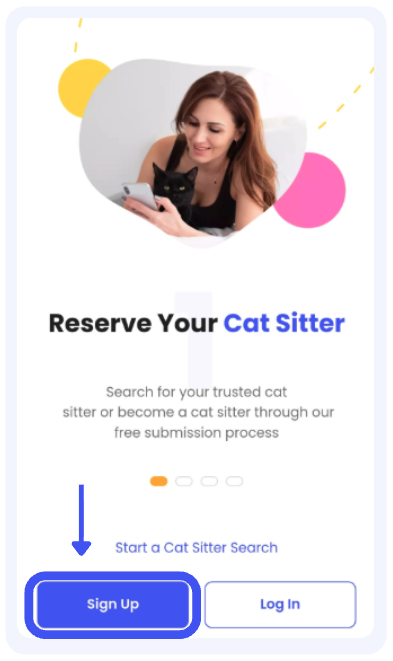
Sign Up
- If you’re new to Meowtel and don’t have an existing Meowtel account, click “Sign Up” and select your preferred sign up method.
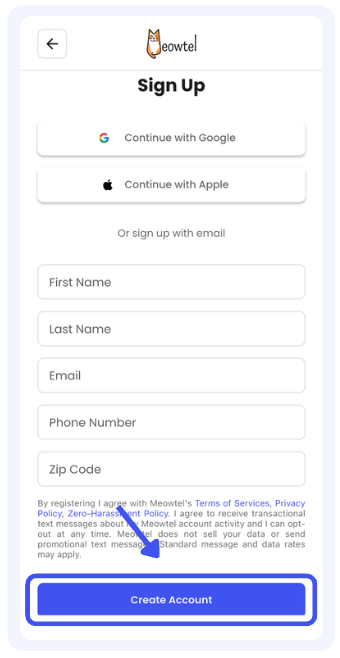
Create your Meowtel account
- You can create your account using Google, Apple, or your email address, and follow the prompts to enter all required information. Then click “Create Account”.
Complete your Cat Parent profile
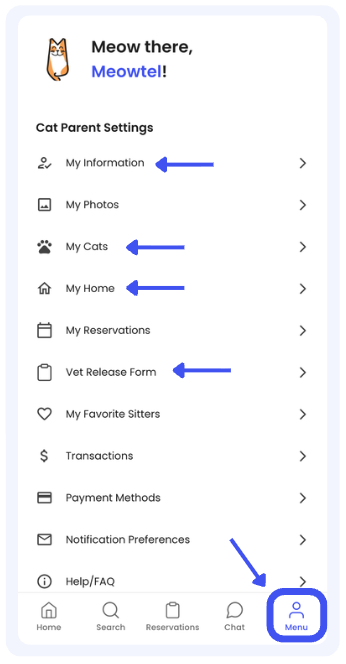
- Upload photos of yourself and your cat(s) so sitters can get to know you and your feline family. We also encourage you to add a short introduction about yourself on your My Information page by tapping “Menu” then “My Information”
Add your cats
- To add information pertaining to your cat(s), tap on “Menu”, then “My Cats”, where you can add or edit a profile for each kitty in your home.
Complete your Vet Release Form
- We strongly encourage you to complete your Vet Release Form. This information can be extremely helpful to your sitter in the event of an emergency. To access the Vet Release Form, tap on “Menu” then “Vet Release Form”
Add your home information
- To add details about your home and any special instructions for your sitter (such as entry codes, alarms, HVAC or thermostat information, parking details, or other household considerations), click on Menu and select My Home.
You're ready to book!
- You can now browse available sitters in your area and book a background-checked cat sitter on Meowtel.

- Be as thorough as possible when completing your cat profiles. You can include feeding instructions, food allergies, medications, medical conditions, favorite toys, litter care instructions, and any additional care notes. This information helps sitters better understand your cats' needs and your expectations.
- Completing your Vet Release Form is highly recommended in the unlikely event of an emergency. The form authorizes your sitter to transport your cat(s) to your designated veterinarian or animal hospital in case of an emergency. Without this form, your cat sitter may not be authorized to transport your kitty to a medical facility if needed.
- If you have any questions or need assistance, please reach out to our support team at 844-MEOWTEL (1-844-636-9835) or via email at [email protected].
Once logged into your account on the website, click on View Profile in the left hand menu. Here you will be able to view all cat care information provided to your sitter on Meowtel.
Note: This option is only available on our website, not on our app. The information is only visible to your sitter on Meowtel after your reservation has been confirmed.
While logged into your Meowtel account on our website, you may upload or edit your profile photo on your My Information screen. On our Meowtel app, you can do this from the My Photos screen under the Menu tab.
Photos of your kitties can be uploaded on their individual profiles on the My Cats screen on both our app and website.
It's very important to provide photos before your Meet & Greet and reservation begins. A profile photo helps your sitter confirm that they're meeting the correct person, and photos of your kitties help your sitter identify the correct cats. (This is especially important in multi-cat households where cats might require different medications, diets, etc.) Please don't skip this step!
The Meowtel Chat is the safest and most convenient way to communicate with your sitter. Keeping all messages within the platform helps keep important details organized and easily accessible, helps protect your privacy, and allows Meowtel to assist in case of any disputes, emergencies, or concerns.
Using the Meowtel Chat helps maintain transparency, security, and proper documentation of all conversations. As a cat parent, this protects you by maintaining a clear record of agreements, instructions, and updates regarding your cat's care. It also helps Meowtel provide support if any issues arise, giving you peace of mind.
If you communicated with your sitter outside the Meowtel Chat, Meowtel's ability to investigate may be limited. We will need any relevant documentation, such as screenshots, screen recordings, or call logs, to assess the situation more effectively.
The onboarding process includes a background check and typically takes 1 - 3 business days to complete. The process consists of the following steps:
- Check if sitter profile submissions are open in your area by entering your zip code in the Become a Sitter page
- Create your Meowtel account
- Download the Meowtel app and start the registration process by showcasing your cat experience and knowledge
- Create your sitter profile and upload your profile photo
- Finalize your sitter profile by setting up your availability, service zones, and rates
- Lastly, if you choose to proceed, you'll be prompted to complete a third-party background check. At this stage, a one-time, non-refundable Profile Review Fee is collected. This fee helps cover the cost of the background check and the time involved in reviewing new sitter profiles. You'll see the fee clearly outlined before deciding whether to continue.
The primary communication method for all sitter registration updates is via email. Please check your spam folder for communications from Meowtel so that you do not miss any important notices.
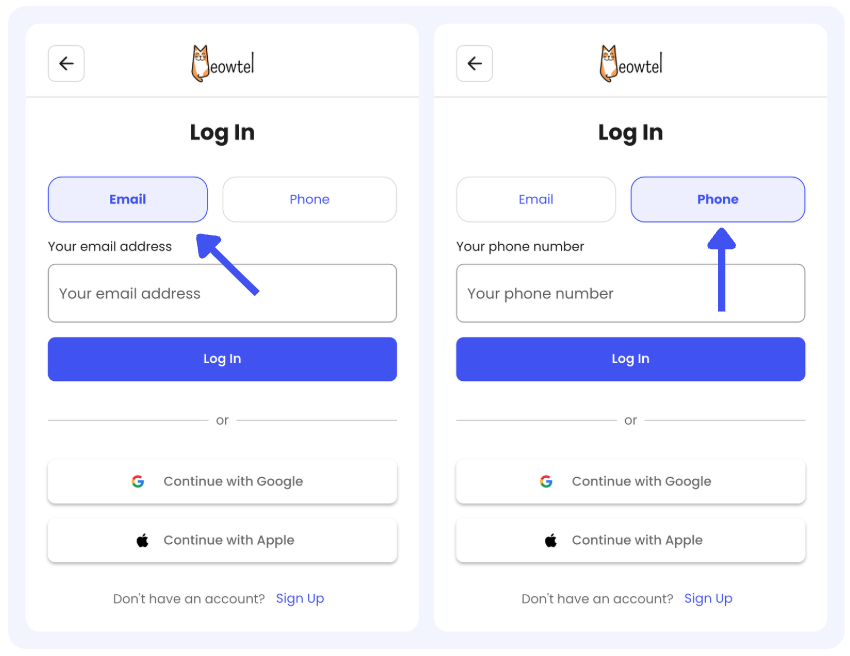
Log in to your Meowtel account
- Log in to your Meowtel account using your phone number or email address on Meowtel.com or the Meowtel App.
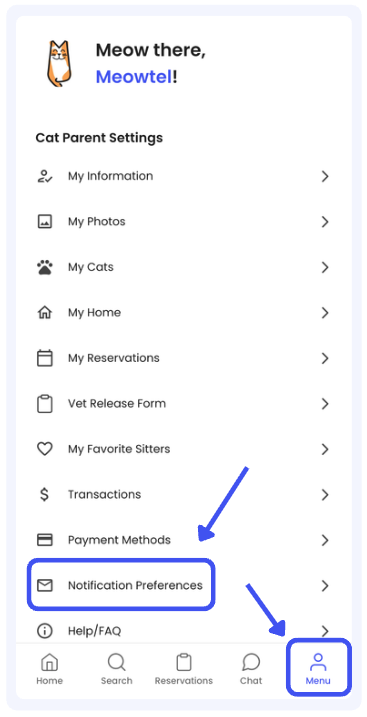
Go to Notification Preferences
- To edit your notification preferences, tap on the “Menu” button, and then "Notification Preferences”.
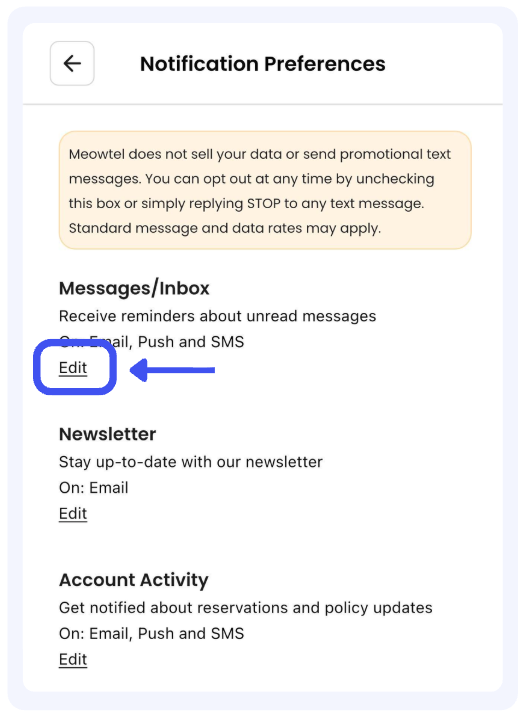
Toggle your preferences
- Tap “Edit” for each notification category (Messages/Inbox, Newsletter, Account Activity, etc.).
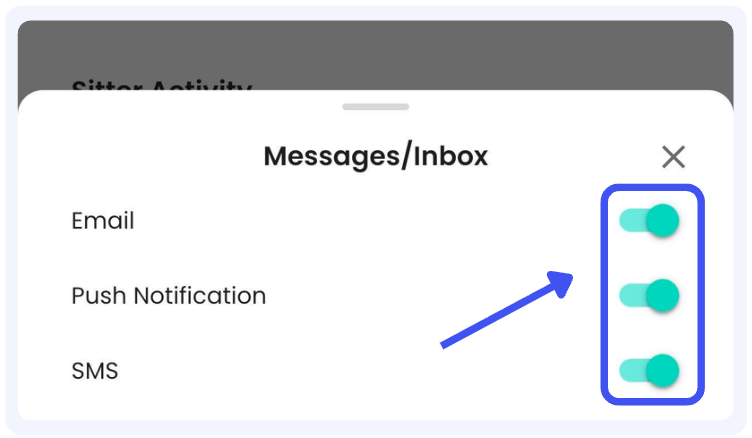
- For each notification category, choose which communication methods you’d like to receive by toggling Email, Push Notification, and SMS/text on or off.
Not receiving notifications?
- There could be a few reasons why you aren't receiving notifications. If your in-app notification preferences are already enabled but you’re still not receiving alerts, you can refer to the troubleshooting steps in this helpful FAQ: Why am I not receiving text message, email or app notifications?

- Make sure notifications are enabled for Meowtel in both the Meowtel app and your device settings.
- Still not receiving alerts? Reach out to our support team at [email protected] or 844-MEOWTEL (844-636-9835).
There could be a few reasons why you aren't receiving notifications. First, open the Meowtel app and go to your Menu > Notifications to make sure your in-app notification preferences are enabled. Then, check the following:
1. Push Notifications
- Make sure notifications are enabled for Meowtel in both the app and your device settings.
- Check that features like Do Not Disturb (DND) or Silent Mode aren't blocking alerts.
2. Text Messages
- Confirm your phone number is correct in your profile.
- Ensure SMS is not disabled or blocked (e.g., Airplane Mode or SMS restrictions).
- Text START to (888) 703-6369 to re-opt into SMS alerts, then try again in 5-10 minutes.
3. Email Notifications
- Check your spam or promotions folder.
- Add @meowtel.com to your email's safe sender list.
Still not getting your alerts? Reach out to our support team at [email protected] or 844-636-9835 -we're happy to help!
If you haven't received your code, try these steps to get logged in:
1. Switch your verification method:
- If you're logging in with your phone number, try switching to email, or vice versa.
2. For SMS codes when logging in with your phone number:
- Make sure your phone number is correct in your profile.
- Ensure Airplane Mode, Do Not Disturb, or similar settings aren't blocking texts.
- Text START to (888) 703-6369 to re-opt into SMS alerts, then try again in 5-10 minutes.
- Verify that notifications are enabled in both the Meowtel app (Menu > Notifications) and your phone's system settings.
3. For email codes when logging in with your email address:
- Check your spam or promotions folder.
- Add @meowtel.com to your email contacts to prevent filtering.
Still stuck? Don't worry, reach out to our support team at [email protected] or 844-636-9835 and we'll help you troubleshoot!
If you're looking for fun features, helpful cat-care tips, or Meowtel stories, you can find them outside of the FAQs on Meowtel's main content channels.
Meowtel Blog is a great place to explore longer articles, sitter spotlights, cat-care guides, and other Meowtel stories: https://meowtel.com/blog
You can also follow us on social media for updates, cat content, and community highlights:
- Instagram: https://www.instagram.com/meowtel/
- Facebook: https://www.facebook.com/Meowtel/
- TikTok: https://www.tiktok.com/@meowtel
- YouTube: https://www.youtube.com/@Meowtel
These channels are where we share lifestyle and storytelling content, while Meowtel's FAQs focus on support and how-to information. If you're ever unsure where to look, feel free to reach out to Meowtel's support team for guidance.
Download and open the Meowtel App
- Visit the Meowtel website, or download the Meowtel App via Google Play Store or App Store and open the app once it is installed on your device.
Log in to your Meowtel account
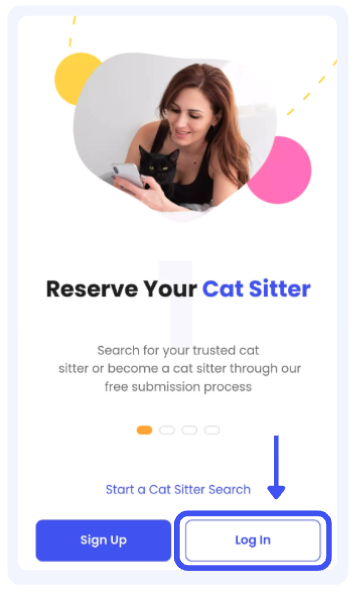
- If you already have an existing Meowtel account, click “Log In”.
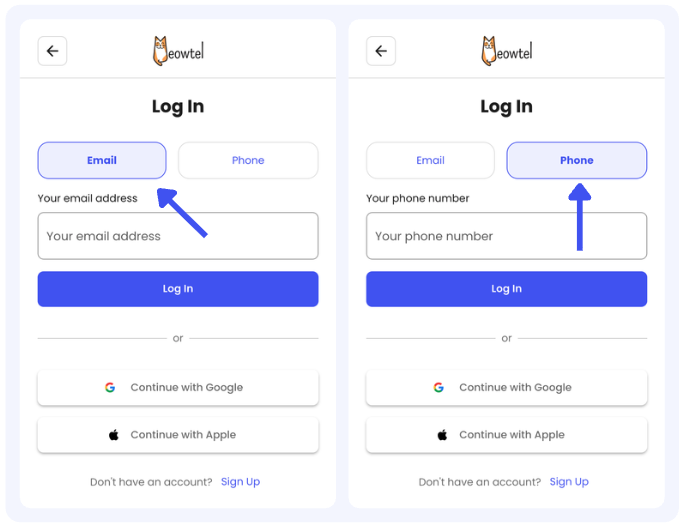
- Choose to Log-in to your Meowtel account using your phone number or email address on Meowtel.com or the Meowtel App (or select “Continue with Google” or “Continue with Apple” if that was the method you used to create your Meowtel account).
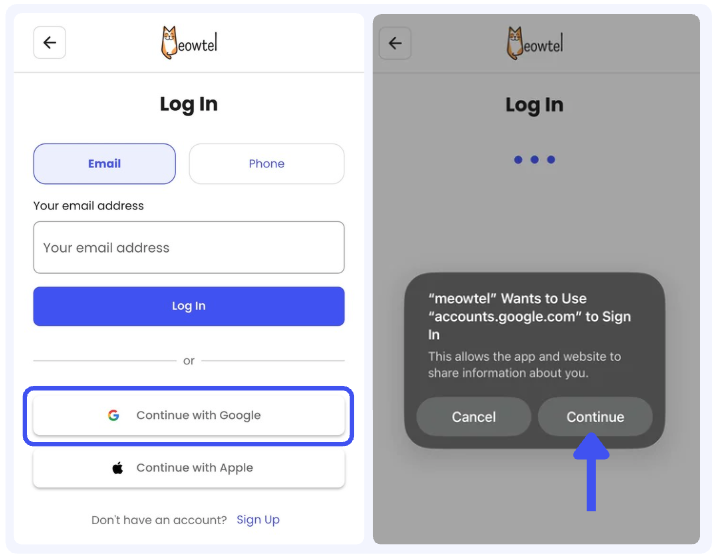
- If your account was made through signing in with Google click “Continue with Google” and select the Google account associated with your existing Meowtel Account.
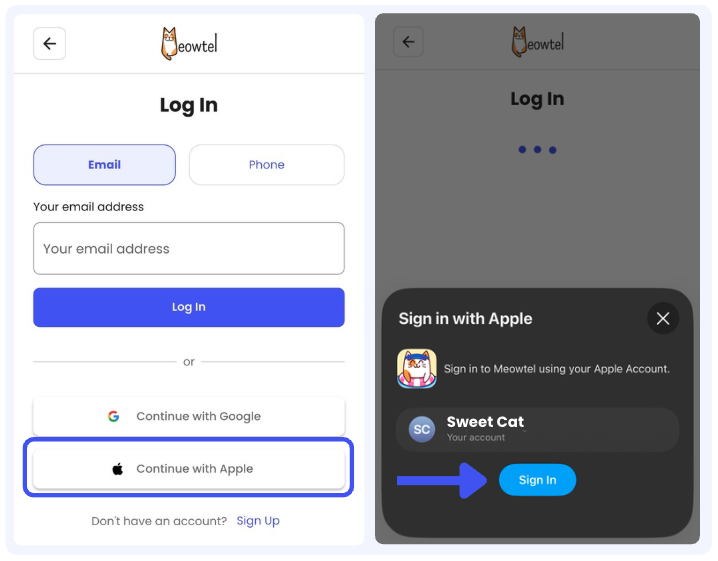
- If your account was made through signing in with Apple click “Continue with Apple” and select the Apple ID associated with your existing Meowtel Account.
Enter your OTP (One Time Passcode)
- You will immediately receive a temporary, one time 4-digit verification code to your email address or phone number, depending on which method you entered on the Log In screen.
- Once you receive the 4-digit code, enter it in the field provided, after which you will be logged in.
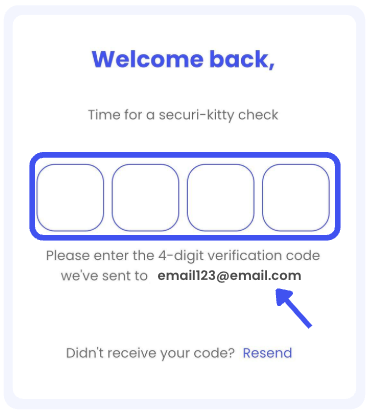

- If you are not receiving your 4-digit login code, please try switching your verification method. If you do not receive a text to your phone number, try verifying with your email address instead, or vice versa.
- For SMS codes, make sure your phone number is correct, able to receive text messages, and that Airplane Mode, Do Not Disturb, or similar settings are turned off.
- If you are not receiving an SMS/text with your 4-digit code, text the word “START” to (888) 703-6369. Please wait about 15 minutes before attempting to log in again.
- Check that notifications are enabled in the Meowtel app and your device’s system settings.
- If you are not receiving the code to your email, check your spam or promotions folder.
- Add @meowtel.com to your contacts to help prevent Meowtel-sent emails from being filtered out.
- If you are still having trouble, please contact our support team at [email protected] or 844-MEOWTEL (844-636-9835), and we’ll be happy to help.