
Meow! How Can We Help?
Most Popular Questions
Browse by Category
Frequently Asked Questions
Log in to your Meowtel account
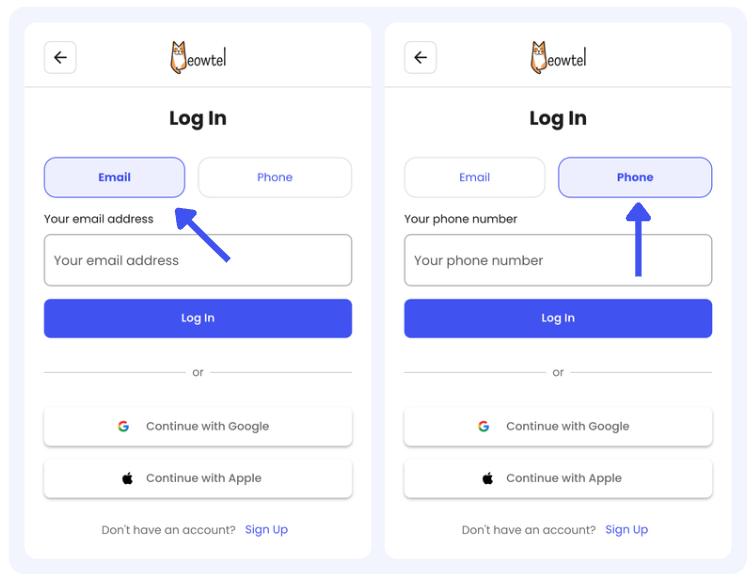
- Log in to your Meowtel account using your phone number or email address on Meowtel.com or the Meowtel App.
Review our Cancellation Policy
- Cancellation refunds depend on the timing of the cancellation and are determined by the independent sitter. You can review our Cancellation Policy first before proceeding with a cancellation here: What is your Cancellation Policy?
Cancel your reservation
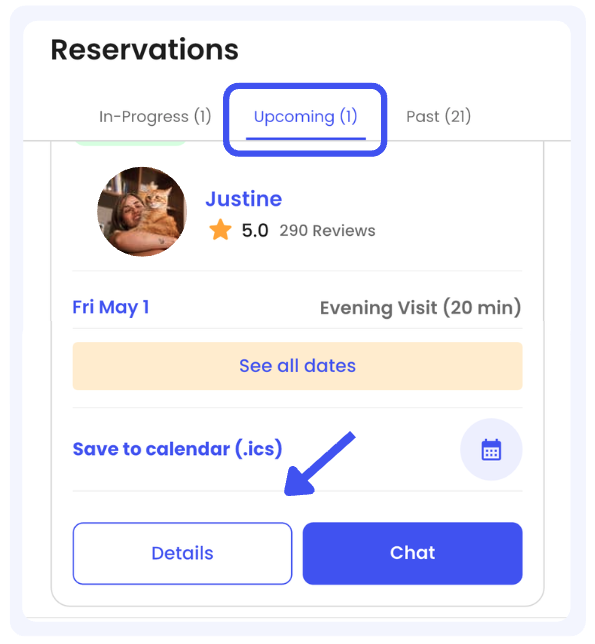
- Navigate to “Reservations” on the lower part of the app.

- Select the Reservation you wish to cancel and click “Details”
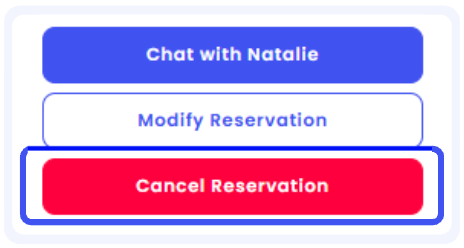
- Click “Cancel Reservation”
- Follow the prompts, select your cancellation reason, and confirm the cancellation.

- You will receive a confirmation email once the reservation is cancelled.
- Reservations must be cancelled from your Meowtel account via web or the Meowtel App.
- Cat sitters are unable to initiate cancellations within the Meowtel site or App.
- All cancellation timing is based on the sitter’s time zone. The start date is defined as 12:00 AM on the first day of the reservation.
- Refunds are issued as credit to your Meowtel account balance first. You can request a refund to your original payment method for any eligible account balance by visiting the Transactions page and clicking “Refund Balance”.
- If you have any questions or need assistance, please reach out to our support team at 844-MEOWTEL (1-844-636-9835) or via email at [email protected].
Log in to your Meowtel account
- Log in to your Meowtel account using your phone number or email address on Meowtel.com or the Meowtel App.
Begin your sitter search
- Start your search by tapping the “Search” button in the Meowtel app or the “Search” icon on the Meowtel website.

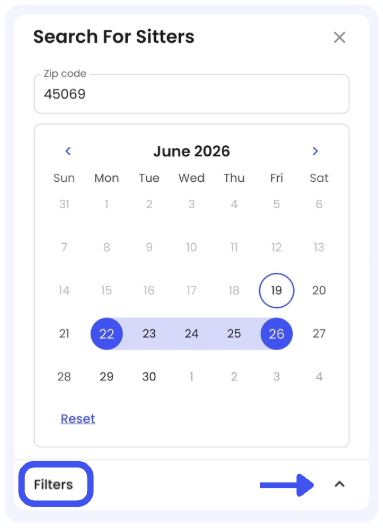
- Confirm the dates that you wish to reserve a sitter by selecting the first day and the last day you will need on your reservation:.
- If you want to narrow down your search based on service type or medication needs, you can use "Filters" on both Meowtel.com or the Meowtel App.
Book your reservation
- Click on any sitter’s photo to review their profile, including their availability, reviews, bio, and note any schedule constraints they may have. Click “Book [Sitter’s Name] Now” when you are ready to proceed.
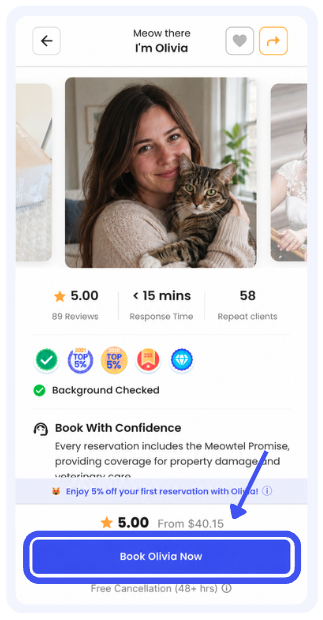
- Please note, if you are looking to book a short notice or last minute reservation, some sitters may have advance notice requirements and may not be able to accommodate your request.
Confirm your reservation details
- Confirm your home address (the location where your sitter will be taking care of your cats) is correct, and ensure you have listed all cats to be included on the reservation. Then click “Save & Continue”.
Select your dates and preferences
- Select each date you require cat sitting services. The calendar will display the dates when the sitter you’ve selected is available for drop-in visits and/or overnight stays. After selecting the dates you need, click “Save & Continue”.
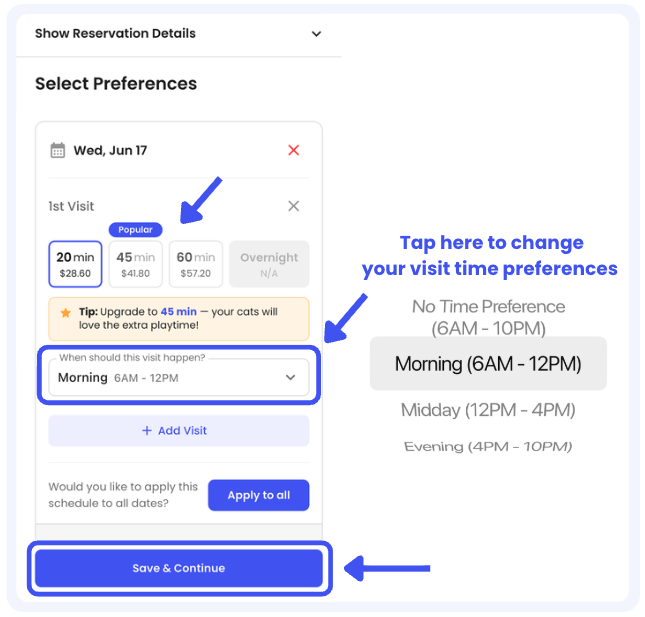
- For each of the dates on the reservation, select the number of visits per day, preferred visit times (Morning, Evening, etc), and visit durations.
- After selecting your “Preferences”, tap “Save and Continue”
Review your reservation
- Review your reservation details, including the dates you’ve selected, number of visits, the visit times, and visit durations.
- You can also include an introductory message to your sitter, share medication requirements, or any specific scheduling requests.
Confirm your reservation request
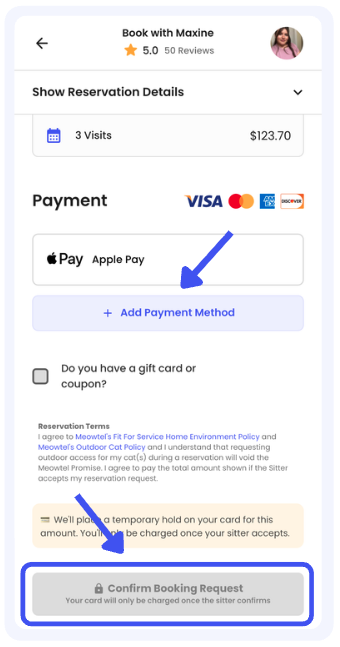
- Enter your payment information and submit your reservation request. A temporary authorization hold will be placed on your card at that time.
What happens next?
- Once your sitter accepts the reservation request, your payment method will be charged. Your sitter may contact you via the Meowtel inbox to introduce themselves, ask questions, or suggest a Meet and Greet before your reservation is set to begin. You may also initiate a conversation with your sitter via the Meowtel inbox.

- Coupon codes must be applied before submitting your reservation request and cannot be applied after the reservation request has been accepted by your sitter.
- Only the cats included on the reservation will be eligible for care.
- You may see a temporary hold on your credit card upon initially submitting a reservation request to a sitter. While the reservation request is pending sitter acceptance, please note that the hold is not yet a charge, but an authorization to ensure funds are available. The charge will complete upon the sitter’s acceptance of your reservation request.
- Once the reservation request is received, sitters have 24 hours to accept or decline the request. If they do not take action before 24 hours pass, or if they decline your reservation request, the pending authorization on your credit card will be released.
- If you have any questions or need assistance, please reach out to our support team at 844-MEOWTEL (1-844-636-9835) or via email at [email protected].
Download and open the Meowtel App
- Visit the Meowtel website, or download the Meowtel App via Google Play Store or App Store and open the app once it is installed on your device.
Log in to your Meowtel account
- If you already have an existing Meowtel account, click “Log In”.
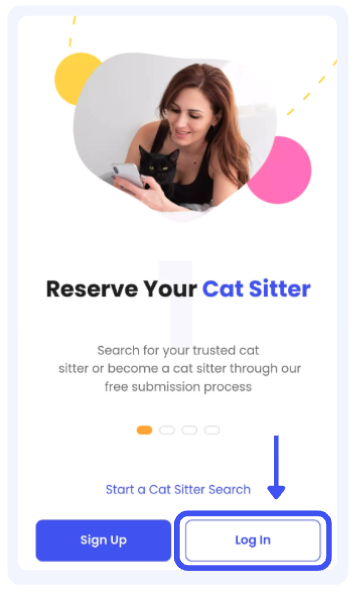
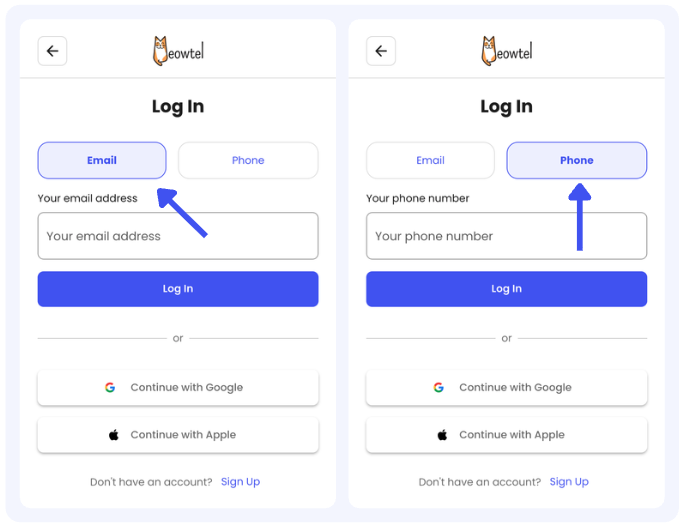
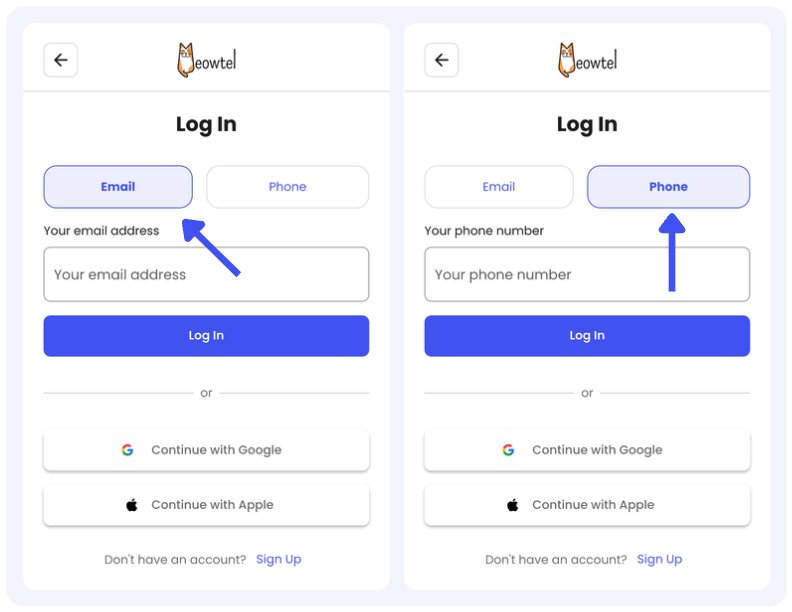
- Choose to Log-in to your Meowtel account using your phone number or email address on Meowtel.com or the Meowtel App (or select “Continue with Google” or “Continue with Apple” if that was the method you used to create your Meowtel account).
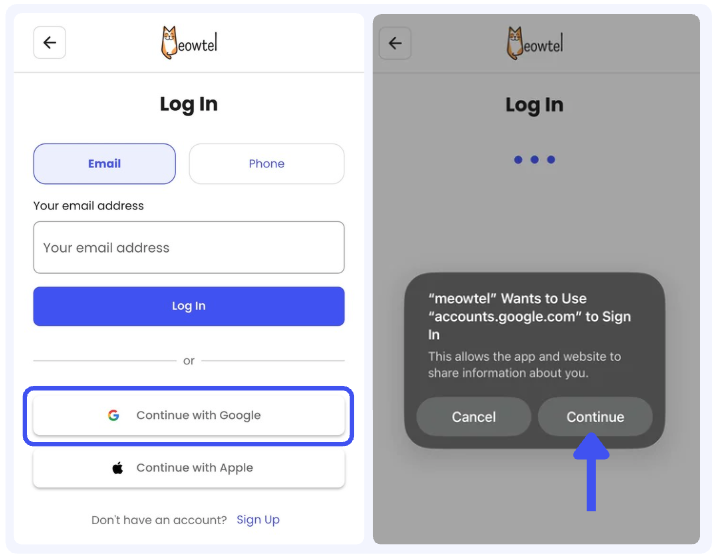
- If your account was made through signing in with Google click “Continue with Google” and select the Google account associated with your existing Meowtel Account.
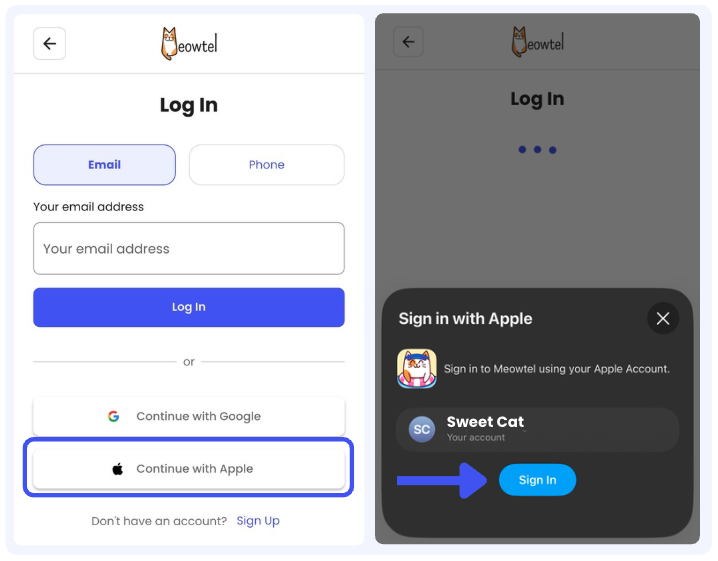
- If your account was made through signing in with Apple click “Continue with Apple” and select the Apple ID associated with your existing Meowtel Account.
Enter your OTP (One Time Passcode)
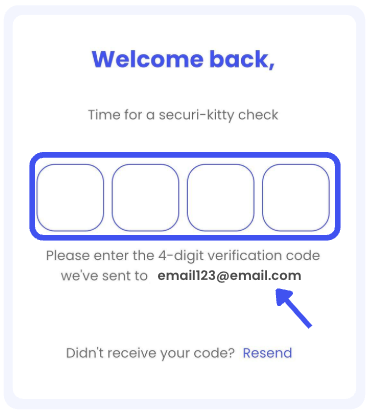
- You will immediately receive a temporary, one time 4-digit verification code to your email address or phone number, depending on which method you entered on the Log In screen.
- Once you receive the 4-digit code, enter it in the field provided, after which you will be logged in.

- If you are not receiving your 4-digit login code, please try switching your verification method. If you do not receive a text to your phone number, try verifying with your email address instead, or vice versa.
- For SMS codes, make sure your phone number is correct, able to receive text messages, and that Airplane Mode, Do Not Disturb, or similar settings are turned off.
- If you are not receiving an SMS/text with your 4-digit code, text the word “START” to (888) 703-6369. Please wait about 15 minutes before attempting to log in again.
- Check that notifications are enabled in the Meowtel app and your device’s system settings.
- If you are not receiving the code to your email, check your spam or promotions folder.
- Add @meowtel.com to your contacts to help prevent Meowtel-sent emails from being filtered out.
- If you are still having trouble, please contact our support team at [email protected] or 844-MEOWTEL (844-636-9835), and we’ll be happy to help.
Download and open the Meowtel App
- Visit the Meowtel website or download the Meowtel App via Google Play Store or App Store, and open the app once it is installed on your device.
Log in to your Meowtel account
- Log in to your Meowtel account using your phone number or email address on Meowtel.com or the Meowtel App.
Click the “Search” button
- Once logged in, click the “Search” button at the lower left of your Meowtel App.

Start your sitter search
- Use your zip code to browse local, background-checked sitters.
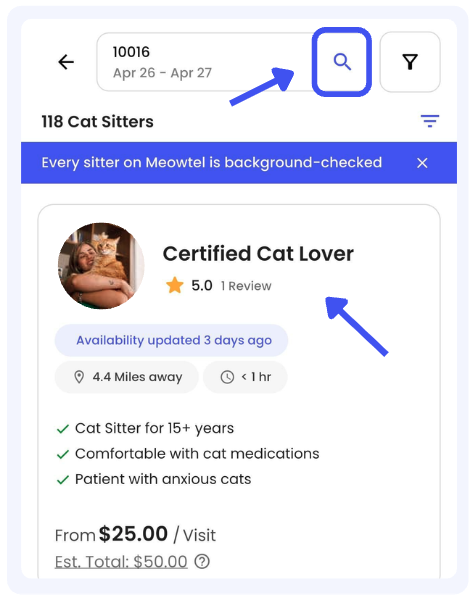
View sitter profiles
- Click on a sitter’s photo to view their full bio, specialized skills (such as medication experience), and verified reviews from other cat parents.
Scroll down and connect
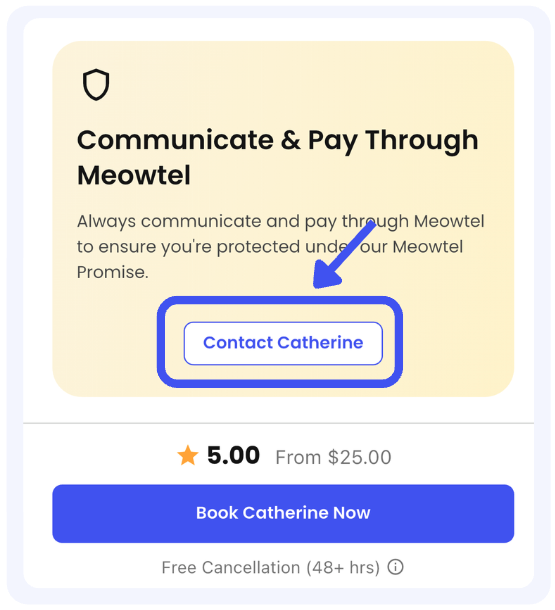
- While viewing the sitter’s profile page, scroll down past the sitter's availability calendar. You will see a banner titled "Communicate & Pay Through Meowtel". Within this banner, click the button that says "Contact [Sitter Name]".
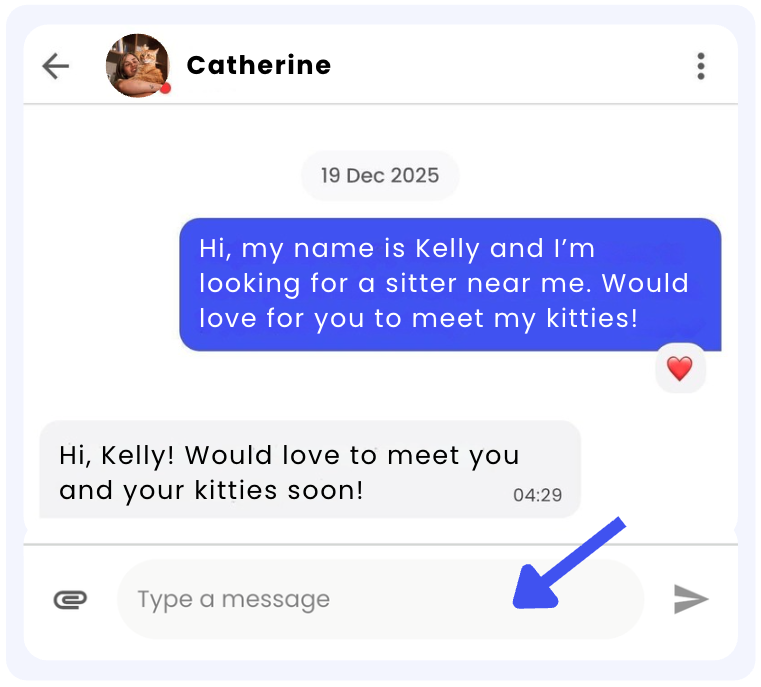
Send a message
- You can start by introducing yourself and your cat(s), share any care preferences, and ask any initial questions you may have.

- A confirmed reservation is required prior to scheduling and conducting a Meet & Greet with your sitter.
- Meowtel's Terms of Service prohibit arranging off-platform payments. Reservations initiated through the Meowtel platform must be paid for through the platform. Completing payment outside of Meowtel for a platform-initiated reservation may result in account deactivation in accordance with our Terms of Service.
- If you have any questions or need assistance, please reach out to our support team at 844-MEOWTEL (1-844-636-9835) or via email at [email protected].
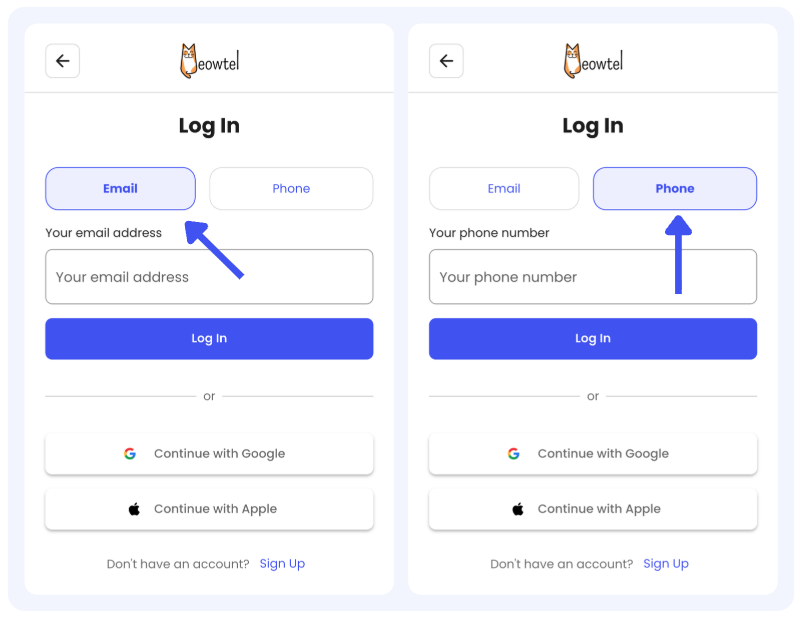
Log in to your Meowtel account
- Log in to your Meowtel account using your phone number or email address on Meowtel.com or the Meowtel App.
Go to your Reservations tab
- Once logged in, navigate to the “Reservations” button on the app.

Select the Reservation you wish to modify
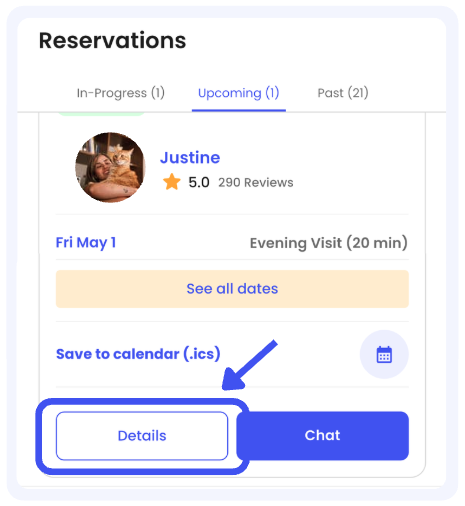
- Locate the reservation you wish to edit and click “Details”
Modify your Reservation
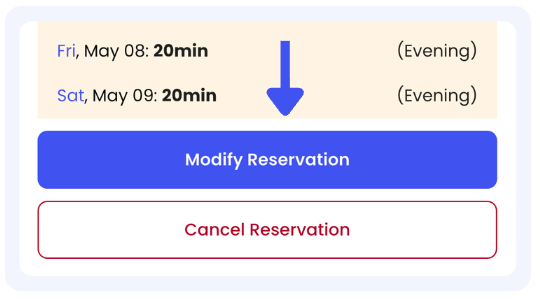
- Click “Modify Reservation” then edit your preferences.
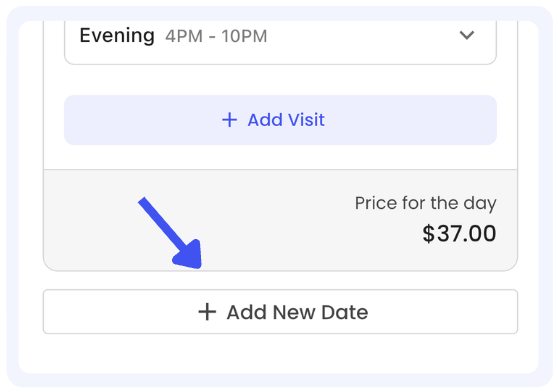
- To add a date you can scroll at the very bottom of the page and press “add new date” below all visits listed.
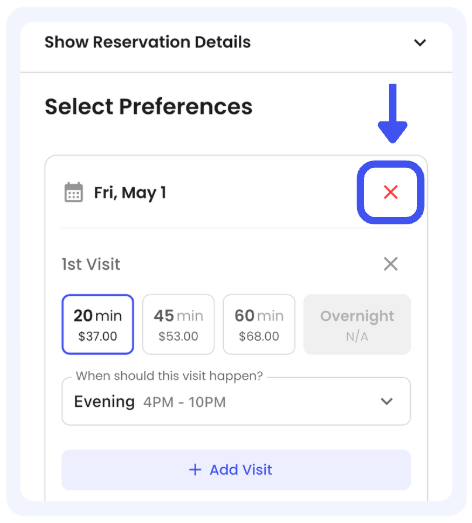
- To remove a date click the red X on each date.
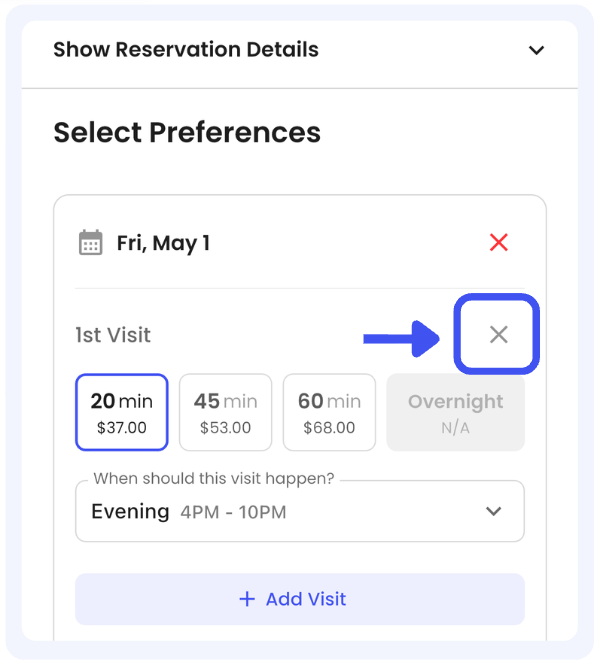
- To remove a visit click the grey X on each visit.
Confirm your Modification Request
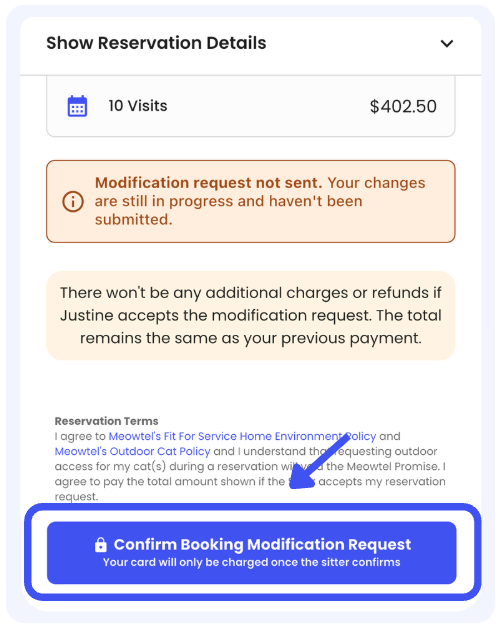
- Please be sure to click “Save and Continue” and then select “Confirm Modification Request.” This ensures your request is fully submitted.

- Current or past dates cannot be modified; only future dates can be changed. If an urgent, same-day change is required, please contact the Bellhop at [email protected] or 844-MEOWTEL (1-844-636-9835) for assistance.
- You'll only be able to choose from the sitter's available dates.
- If a sitter has changed their rate or holiday surcharge since the original reservation was made, the new rate or surcharge will be applied to the new visit(s) or a modified visit only if the visit's duration, time preference, or timing has been updated. If no changes were made to the visit, the original rates and surcharge will be honored.
- Every modification request is sent to the sitter for approval. Important: Please be sure to “Save & Continue” after making your updates to route the request to the sitter for review (both parties should receive confirmation of this request if submitted correctly).
- If today is the final day of your reservation, you will not be able to modify it to add additional visits. Instead, please send the sitter a new reservation request for the additional visit(s).
- You can only select new dates within a 15-day window before your original reservation start date, or 15 days after your original reservation end date. If you'd like to select dates that are further out, a new reservation request will need to be submitted.
To keep your Meowtel profile active and maximize your success as a sitter on Meowtel:
- Log in to your account regularly. Your account will automatically deactivate after 90 days of inactivity.
- Update your Availability Calendar regularly. Updating at least once every 30 days helps you receive relevant requests. Each Service Zone will automatically be disabled if 90 days pass without an update.
- Consider Consecutive Availability. As a best practice, aim to offer consecutive days of availability as much as possible. This helps provide continuous care, which is highly valued by cat parents and may lead to more frequent bookings. Cat parents usually don't schedule visits that are spread out, such as on a Tuesday and then on a Friday.
- Abide by all Terms of Service and review tips for meeting client expectations